Here are the steps to use the built in wizard in the Windows Server 2012 Hyper-V Manager to convert from VHD to VHDX.
- Go to the Hyper-V Manager. Under the Actions pane, click on Edit Disk… (more…)
Here are the steps to use the built in wizard in the Windows Server 2012 Hyper-V Manager to convert from VHD to VHDX.
Windows 8 supports virtualization on the client OS to allow IT professionals and developers to use Hyper-V as a desktop operating system. If you are an IT Professional or developer that uses Windows Server as development operating environments, you should be excited about new client Hyper-V feature in Windows 8 and wonder what are some of the key differences and similarities between Windows 8 Hyper-V and Windows Server 2012 Hyper-V?
Here are the some of the key differences in Windows 8 Client Hyper-V from Windows Server 2012 Hyper-V:
And the commonalities between Windows 8 Hyper-V & Windows Server 2012 Hyper-V
To remotely manage your Windows Server 2008 Hyper-V server from a windows 7 desktop, you need install RSAT (Remote Server Administrator Tool). This has been simplified in Windows 10. In Windows 10, Hyper-V management tool is built in, Hyper-V manager can be turned on via “Turn Windows features on or off” dialog directly without downloading RSAT.
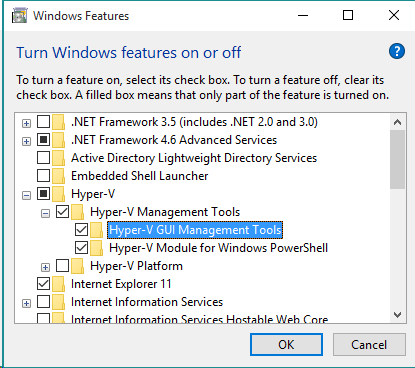
However, Hyper-V manager in Windows 10 can’t manage can’t manage Hyper-V running on downlevel operation systems. If you connect using Hyper-V manager it would fail with following error:
This version of Hyper-V Manager cannot be used to manage server running Hyper-V in Windows Server 2008 or Windows Server 2008 R2
The only workaround so far is remote into a Windows 7/Windows Server 2008 R2 machine and run Hyper-V manager there.
If you’re going to run Windows 8 or Windows Server 2012 in a virtual machine on Windows Server 2008 R2 Hyper-V, please install this hotfix patch http://support.microsoft.com/kb/2744129 on the Hyper-V host server,
Without applying this hotfix, you may experience one or more of the following issues:
Update: the http://support.microsoft.com/kb/2744129.has been added to Windows Auto Update.
SLAT-enabled processor is the requirement of Hyper-V RemoteFX feature which is introduced in Windows Server 2008 R2. It’s the requirement of Windows 8 client Hpyer-V feature as well.
For INTEL CPU models, following CPU models are SLAT-Capable
There is a handy tool named CoreInfo from systeminternals that can check if your CPU is SLAT-Capable, it’s pretty easy to use:
If you see EPT * Supports Intel extended page tables (SLAT) then you are good.

Following are copied from https://social.technet.microsoft.com/wiki/contents/articles/1401.hyper-v-list-of-slat-capable-cpus-for-hosts.aspx
When connect to a remote VM with hyper-v manager, I have to full screen to make Windows key. Personally I think Hyper-V should have a Windows key button in toolbar like "Ctrl+Alt+Delete" button.
Actually Hyper-v manager allows you to select where the Windows keys goes when you press it. Open up the Hyper-V Settings dialog from with the Hyper-V Manager and go to the keyboard setting, you will see 3 settings.

The default one is #3. Once you change it to #2, you will be able to use Windows key inside VM without *full-screen* it.
You will find this helpful if you are connecting to a VM has Windows 8 Metro UI enabled. Without a windows key it’s hard to exit Metro style app and go back to start screen.
In Steven Sinofsky’s this blog – Bringing Hyper-V to “Windows 8”. He talks about that Windows 8 will support virtualization on the “client” OS. This is very helpful for developers as they typically have the need to setup additional test environment on their PC/Laptop.
Hyper-V supports creation of both 32-bit and 64-bit operating systems in VMs. To run Client Hyper-V, your computer must:

Note: You must restart your computer to complete the Hyper-V installation. After restarting the computer, you can use Hyper-V Manager or Windows PowerShell to create and manage VMs. You can also use VM Console to connect to VMs remotely.
Enable-WindowsOptionalFeature -Online -FeatureName Microsoft-Hyper-V
Dism /online /enable-feature /featurename:Microsoft-Hyper-V –All
Difference between Windows 8 Client Hyper-V and Server Hyper-V
When you install the Windows 8 Developer Preview on Virtual PC in 64-bit windows. Your installation would fail with the blue screen of sad:
: (
Your PC ran into a problem that it couldn’t handle, and now it needs to restart
You can search for the error online: HAL_INITIALIZATION_FAILED

You might get following error after you move or replace a virtual disk drive file of a hyper-v virtual machine.
An error occurred while attempting to start the selected virtual machine(s).
'TestVM' failed to start.
Microsoft Emulated IDE Controller (Instance ID
{83F8638B-8DCA-4152-9EDA-2CA8B33039B4}): Failed to Power on with Error 'General
access denied error'
IDE/ATAPI Account does not have sufficient privilege to open attachment
'D:VMTestVMTestVM.vhd. Error: ‘General access denied error'
Account does not have sufficient privilege to open attachment
'D:VMTestVMTestVM.vhd. Error: ‘General access denied error'
This is because the permissions on the new virtual hard drive (D:VMTestVMTestVM.vhd in this case) are incorrect. Here is the steps to fix this permission file.
Remote Server Administrator Tools (RSAT) is not compatible with Windows 7 SP1. If you install Remote Server Administration Tools on Windows 7 SP1 slipstreamed media, you will get following error.
The update is not applicable to your computer
That’s because current RSAT version only supports Windows 7 RTM. To workaround this issue, you can Install Remote Server Administration Tools before installing Windows 7 SP1. The SP1 upgrade will update RSAT to SP1 version. The other option is wait for official release of Remote Server Administrator Tools for windows 7 SP1, which will happen this April.
Update 4/8/2011: Microsoft released Windows 7 SP1 RSAT Tools to public today. The download link is here http://www.microsoft.com/downloads/en/details.aspx?FamilyID=7d2f6ad7-656b-4313-a005-4e344e43997d