Developer OneNote

Emma's OneNote for Microsoft Windows, Office and Programming

Tag: OneNote

OneNote 2010 New Features

15 June, 2010 | Category: Office

Office 2010 has a few great new features and improvements which make sharing and collaboration easier than ever.

OneNote Web Application

You can now create OneNote notebooks through web browsers and have other people to view, edit and collaborate anywhere. All notebooks created online will be saved to SkyDrive so you will need to have a Windows Live ID.

OneNote Web Application is free, just like other similar live service Microsoft has delivered over many years (hotmail, messenger). To get start with OneNote Web App, go to http://office.live.com and logon with your Windows Live ID. OneNote Web Application has familiar OneNote interface so you don’t have to learn it.

Read more »

Sync OneNote 2010 notebooks to SkyDrive

10 June, 2010 | Category: Office

In order to sync OneNote 2010 notebooks to SkyDrive and use OneNote Web Application, you will need have Internet Explorer 7 or later version installed.

  • Windows XP with IE8
  • Windows Vista with IE7 or IE8
  • Windows 7 with IE8

Also notebooks files from OneNote 2007 needs to be upgraded to OneNote 2010 file format as only 2010 format is supported by SkyDrive. You can convert old notebooks to 2010 format by

  1. File –> Info –> Setting –> Properties
  2. Click ‘Convert to 2010’ button and press okay.

OneNote System Tray Icon Reappears

16 April, 2010 | Category: Tips and Tricks

System tray icon reappears every time OneNote is started, how to turn it off?

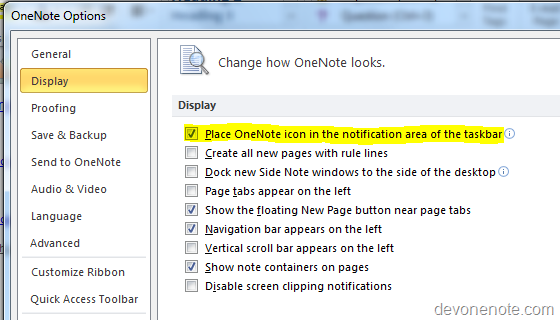
Turn off OneNote System Tray Icon

Go to File, click options, and then click display tab, uncheck Place OneNote Icon in the Notification Area of the Taskbar.

OneNote System Tray

Note: Turn of OneNote icon in taskbar also turn off  OneNote Snap Tool, if you wish to use Windows key + S to bring up OneNote Snap Tool to capture screenshot, you will need to have option Place OneNote Icon in the Notification Area of the Taskbar marked.

Update 5-22 The equivalent in OneNote 2007 is Go to Tools, and click Other and then uncheck Place OneNote Icon in the Notification Area of the Taskbar

Turn on OneNote System Tray Icon

Change Place OneNote Icon in the Notification Area of the Taskbar option back to marked will get OneNote System Tray Icon back.

OneNote Is Unable To Start

16 April, 2010 | Category: Office

You might see OneNote failed to start with following error message displayed

OneNote is unable to start. This may be caused by insufficient hard drive space or by insufficient write permissions for OneNote’s notebook cache files in you user setting folder. Try to delete any unnecessary files from your computer and then try starting OneNote again. If this message persists, contact your system administrator. Error code: 0x45D

Read more »

OneNote Snipping Tool

30 March, 2010 | Category: Office, Productivity Tools

I previously used Alt+PrintScreen key for screenshots and then pasted into MSPaint and then edited the picture, and then capture just part of a screenshot. Now a better way is install Microsoft OneNote and take screenshot via the WinKey + S and then select the portion of the screenshot you want and paste anywhere.

Note: this option also available under menu “Insert”  -> “Screen Clipping”

And yes, it’s better than Vista/Win7’s snipping tool in my option.

Onenote 2010 Highlight Unread Changes

16 March, 2010 | Category: Office

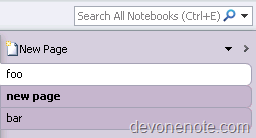
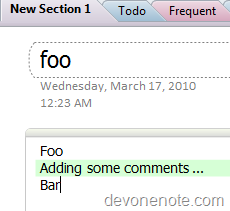
OneNote 2010 has a new feature, it remembers notes you’ve read and highlights new changes since you last read. All new unread content on pages will be highlighted with green highlight. This is very helpful for people who use OneNote for team collaboration. Everyone can easily see what exactly others has added and/or contributed. The pages contain unread content will have bold text in tab and all unread content will be highlighted in green.

New page with bold text tab

New page with bold text tab

New content with green highlight.

image

OneNote: Unread Highlighting cannot be cleared

4 March, 2010 | Category: Office

I recently upgraded to Office 2010 BETA and I notice an annoy bug in OneNote 2010.

There is a feature in OneNote 2010 which will highlight unread content after notes are synced between two PCs. However, it can’t detect whether those content is read or not so the green highlighting will stay there forever.

The workaround is right-clicking on the notebook and choosing to Mark as Read. By doing this you tell OneNote I read it and please remove the green highlighting. This also makes unread bolding go away.

Update:

29th April – This is gone in final Office 2010 RTM build 14.0.4763.1000

How to delete a notebook in Office OneNote

9 February, 2010 | Category: Office

Q: How to delete a notebook in Office OneNote? Doesn’t seem to be a way to delete a whole notebook

A: Since it’s just a folder, you must do this from the windows file system.  Go to “My Documents -> OneNote Notebooks”, find the file folder (notebook), right click and choose Delete

OneNote Online Videos and How-To articles

31 January, 2010 | Category: Office, Tutorial

Video Demos

What is OneNote?
Get an up-close look at the benefits of using OneNote and see why electronic notes are better than paper.

Set up a OneNote notebook
See how easy it is to get started with OneNote and why you won’t want to go back to paper notes.

Keep it together with OneNote
Learn why OneNote is perfect for research projects and other types of information gathering.

Organize, search, and find information in OneNote
If it’s in your notebook, OneNote can find it – even if you haven’t spent any time organizing your notes.

See how Jeff Raikes uses OneNote 2007
A video of Microsoft Business Division President using OneNote 2007 

Click here to view other OneNote video demos.

Help & How-To Articles

Find your way around OneNote 2007
Take a quick visual tour of the OneNote interface and read tips on maximizing your workspace.

Get started with OneNote 2007
Make the most out of OneNote right from the start with this useful roadmap to online resources.

See how Jeff Raikes uses OneNote 2007
A great article describing how Jeff Raikes uses OneNote 2007.

Top tips for OneNote 2007
Browse a collection of the most popular OneNote 2007 time savers and shortcuts.

Keyboard shortcuts for OneNote 2007
Look up shortcuts and accelerators for common OneNote tasks in this categorized reference.

Click here to view the OneNote Help home page.