Tag Archives: Windows 8

Windows 8 – I can’t find the Internet Explorer on the new Start Screen. How do I get it back?

Internet Explorer 10 might have accidentally become unpinned. To pin it back to your Start screen, follow these steps:

  1. Swipe in from the right edge of the screen, and then tap Search.
    (If you’re using a mouse, point to the upper-right corner of the screen, and then click Search.)
  2. Enter Internet Explorer, and then tap or click Apps.
  3. In the search results, swipe down on the Internet Explorer icon, and then tap Pin to Start.
    (If you’re using a mouse, right-click Internet Explorer, and then click Pin to Start.)

How to Search in Windows Store

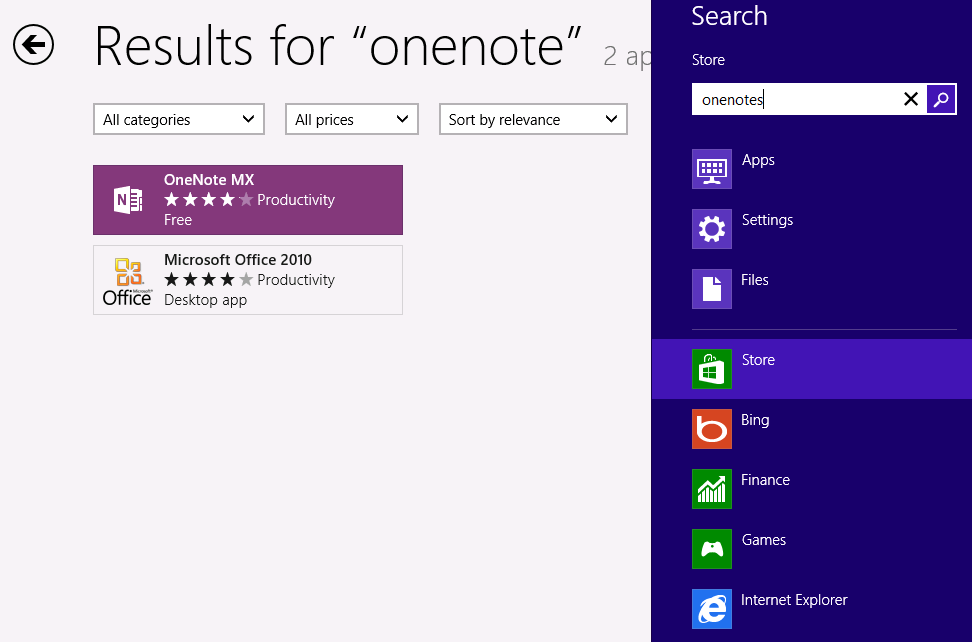
You might notice that there is not search box in Windows Store and find it’s difficult to see a way to search app in store. Here are steps:

  1. WinKey + C to open the charms bar
  2. Click or tap “Search”
  3. Enter what you want to search for

Update: actually step #2 & 3 is not necessary, when you go to store, you can just start typing and search will automatically come up. You can even do same in the start screen!

Screenshot for searching OneNote in Store.

image

Windows 8 IE 10 Launch Options

In Windows 8 You can configure IE10 to always open in the default Metro style or in Internet Explorer for the Desktop, as you prefer.

To configure the way links display in IE10 when you open them:

  1. If you are using a Metro version of IE, when viewing a site in IE10, click Page Tools and select View on the desktop.
  2. Click Tools, and select Internet options.
  3. Click to display the Programs tab.
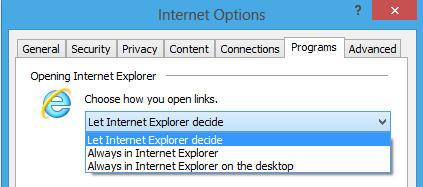
  4. In the Opening Internet Explorer section, select the default option you desire from the menu, and then click OK.image

There are 3 IE launch options.

Let Internet Explorer decide

This option will choose which version of IE to open depending on the context where the link was selected. Selecting a link from a Metro style-app will open the touch-optimized version of the browser. Selecting a link from an application or icon on the desktop will open the desktop version of the browser. This option is the default.

Always in Internet Explorer

Links from all apps, including desktop apps, will open in Metro version of IE.  The only exception here is IE icons and Internet shortcuts on the desktop.

Always in Internet Explorer on the desktop

Links from all apps, including Metro style-apps, will open Desktop version of IE.

Deploy Windows 8 to a virtual hard disk

Windows 7 introduced Native VHD boot which allows user to install Windows 7/Windows server 2008 R2 on a physical box to a virtual hard disk (VHD). You can do same process in Windows 8

  1. Boot from the Windows 8 media (USB, CD, etc.).
  2. At the Install screen, press Shift+F10 to open a command prompt.
  3. Start diskpart and create the VHD file you want to install to:

    create vdisk file=c:\win8.vhd maximum=80000 type=expandable
    select vdisk file=c:\win8.vhd
    attach vdisk
    create partition primary
    format fs=ntfs label=”Win8″ quick

  4. Exit diskpart, and when you install Windows 8 you’ll be able to select your VHD volume (ignore the warning that you won’t be able to install).

If this is an existing machine, and you want to dual boot rather than wipe the disk, then don’t perform the first three blocks of commands.

Difference between Windows 8 Client Hyper-V and Server Hyper-V

Windows 8 supports virtualization on the client OS to allow IT professionals and developers to use Hyper-V as a desktop operating system. If you are an IT Professional or developer that uses Windows Server as development operating environments, you should be excited about new client Hyper-V feature in Windows 8 and wonder what are some of the key differences and similarities between Windows 8 Hyper-V and Windows Server 2012 Hyper-V?

Here are the some of the key differences in Windows 8 Client Hyper-V from Windows Server 2012 Hyper-V:

  • No Hyper-V Replica
  • No Hyper-V Network Virtualization
  • No Virtual Machine Live Migration (Requires Failover Clustering only in Windows Server)
  • No Shared Nothing Live Migration
  • No SR-IOV (You need server class hardware; appropriate firmware, etc; you won’t find this on desktops)
  • No Failover Clustering (Client doesn’t include Failover Clustering)
  • No Virtual Fiber Channel
  • No RemoteFX GPU Hardware Acceleration ( which requires RDV only in Windows Server)
  • Second Level Address Translation (SLAT) HW required

And the commonalities between Windows 8 Hyper-V & Windows Server 2012 Hyper-V

  • Virtual Machines created with Client Hyper-V are 100% compatible with Server Hyper-V
  • Client Hyper-V offers the same VM scale as Server
    • Up to 64 virtual processes per VM
    • Up to 64TB per virtual disk ( vhdx format )
    • Up to 1 TB of memory per VM.
  • Live Storage Migration is included
  • Support VHD Storage on SMB3 file shares
  • 100% PowerShell/WMI compatibility in management from Client to Server.
  • Client Hyper-V offers the full rich, open and extensible Hyper-V virtual switch.
  • QoS, bandwidth management and other advanced virtual switch capabilities are in there

Install Hyper-V Manager on Windows 8

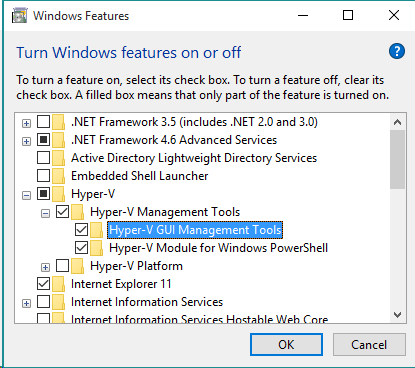
To remotely manage your Windows Server 2008 Hyper-V server from a windows 7 desktop, you need install RSAT (Remote Server Administrator Tool). This has been simplified in Windows 8. In Windows 8, Hyper-V management tool is built in, Hyper-V manager can be turned on via “Turn Windows features on or off” dialog directly without downloading RSAT.

image

However, Hyper-V manager in Windows 8 can’t manage can’t manage Hyper-V running on downlevel operation systems. If you connect using Hyper-V manager it would fail with following error:

This version of Hyper-V Manager cannot be used to manage server running Hyper-V in Windows Server 2008 or Windows Server 2008 R2

The only workaround so far is remote into a Windows 7/Windows Server 2008 R2 machine and run Hyper-V manager there.

Windows 8 How to stop app tile from changing

Tiles are introduced by Microsoft to Windows Phone. Tiles allow user receive latest update on start menu, without the need to open the application. For example, a weather app could show you the latest forecast.

Tile is widely used in Windows 8 metro UI applications. For some metro application you don’t want notification show up in the start menu, you can right click to app, click (or touch) Turn live tile off.

image

How to Reboot or Shutdown in Windows 8


It’s pretty hard to figure out how to reboot or shutdown Windows 8 only use mouse/keyboard. After a few hours search in Google, here comes all options I found. All of them work but involved too many steps. It sucks there is no one click shutdown shortcut.

  • Hover the mouse over the lower right corner ( or WinKey + C),  in the right menu, Settings –> Power –> Sleep/Shutdown/Restart.
  • In desktop mode, press Alt + F4.
  • In user switch screen, highlight username, sign out and then shutdown.
  • Running shutdown in cmd.
    • Shutdown: shutdown /s
    • Restart: shutdown /r

Feel free to comment if you found other options

How to tell if your CPU Supports SLAT

SLAT-enabled processor is the requirement of Hyper-V RemoteFX feature which is introduced in Windows Server 2008 R2. It’s the requirement of Windows 8 client Hpyer-V feature as well.

For INTEL CPU models, following CPU models are SLAT-Capable

  • Server: E5500 or higher.
  • Desktop/Laptops: I3/I5/I7/I7-qm

There is a handy tool named CoreInfo from systeminternals that can check if your CPU is SLAT-Capable, it’s pretty easy to use:

  1. Download from http://technet.microsoft.com/en-us/sysinternals/cc835722
  2. Launch an elevated command prompt
  3. Run “CoreInfo.exe -v”

If you see EPT * Supports Intel extended page tables (SLAT) then you are good.

image

Following are copied from https://social.technet.microsoft.com/wiki/contents/articles/1401.hyper-v-list-of-slat-capable-cpus-for-hosts.aspx

Servers that support SLAT

  • Any AMD server CPU based on Barcelona or later architectures. Some early Barcelona editions didn’t have RVI, but they’re relatively rare. Check this AMD list.
  • Intel server processors numbered E5500 and higher.
  • Any Intel CPUs based on Nehalem, Westmere, or Sandybridge micro-architectures. (There may be exceptions, but I’m not aware of any.)

Desktops that support SLAT

  • Intel processors whose names start with ‘i’, e.g. i3, i5, i7, i9. (There may be exceptions, but I’m not aware of any.)
  • Any Intel CPUs based on Nehalem, Westmere, or Sandybridge micro-architectures. (There may be exceptions, but I’m not aware of any.)

Laptops that support SLAT

  • Lenovo T410, T510, W510, W520, T420s, T520, X201
  • Samsung 900x
  • Dell Precision M4600

How to turn on client hyper-v in Windows 8

In Steven Sinofsky’s this blog – Bringing Hyper-V to “Windows 8”. He talks about that Windows 8 will support virtualization on the “client” OS.  This is very helpful for developers as they typically have the need to setup additional test environment on their PC.

How to turn on client hyper-v in Windows 8

First, make sure your system meets the client hyper-v virtualization requirement, you have 64bit windows 8 OS and SLAT available on CPU.

image

  1. Control Panel –> Programs
  2. Turn Windows Features On or Off
  3. Check Hyper-V, Click Ok

Note: If your system does not have the required virtualization support, the client Hyper-V feature will be greyed out. To check if your CPU is SLAT-capable, check this How to tell if your CPU Supports SLAT.

image

The other cool thing is you can turn hyper-v on even if you are booting from VHD. This behavior is same server Hyper-V in Windows Server 2008 R2.

Alternatively, you can enable Client Hyper-V by running following from PowerShell command.

Enable-WindowsOptionalFeature -Online -FeatureName Microsoft-Hyper-V