Tag: Outlook
Some shortcuts no longer work in Outlook 2010
It turns out Alter Shortcuts, e.g Alt+R (Reply), Alt+L (Reply All), and Alt+W (Forward), no longer work in Outlook 2010 BETA at all, though they worked in Outlook 2007 and previous Office 2010 CTP version.
Actually, these shortcuts are not lost, they just change Alt to Ctrl for some reason. Users have to use Ctrl+R to Reply instead of Alt+R, use Ctrl+Shift+R to Reply All Instead of Alt+L, use Ctrl+F to Forward Instead of Alt+W.
Hopefully MS won’t change these again in RTM builds.
Updates
22th April – Microsoft brings them back in final Office 2010 RTM build 14.0.4763.1000, the shortcuts for reply and forward are same as Office 2007
Reply: Alt+R or Ctrl+Shift+R
Reply All: Alt+L
Forward: Alt+W
Large email sizes in Outlook 2010 BETA
In Outlook 2010 BETA, an email in the default HTML format might take much more space than the other formats. Sometimes, a simple msg takes upward .5 MB to 1 MB or even bigger after a few replies.
Microsoft has released a fix for this, which is available at microsoft download center:
- Download Outlook 2010 Beta fix for 32-bit Office 2010
- Download Outlook 2010 Beta fix for 64-bit Office 2010
Alternatively, you can wait for Office 2010 RC and upgrade when it’s available.
Where is OOF Assistance, Print, Save and my other tools in Outlook 2010
Q: Where is OOF Assistance, Print, Save in Outlook 2010?
A: Click on the ‘File’ button (upper left hand side) to access all the tools you have found in various menu items.
Outlook Mailbox Cleanup
Here are a few tips to clean up mailbox in Outlook.
- Find email larges than 1MB and clean up
- Use AutoArchive to archive old emails from default mail folders to pst files.
- Use Clean Up Conversation if you are using outlook 2010
- Use Shift + delete to delete emails without moving them to deleted items folder.
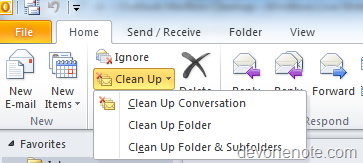
Clean up conversation feature is a new feature in Outlook 2010. It can be found from Home tab in the Ribbon, select ‘Clean Up Folder’ or ‘Clean Up Folder and Subfolders’.
Recover deleted mail in outlook
Have you ever deleted an email, emptied your deleted items folder and then realized one day or two later that you need them? Well you can recover them in outlook using the following easy steps:
Select the ‘Delete Items’ folder
Go to Tools->Recover Deleted Items…
You will see a nice list of all the email that you have deleted. However, you’ll need to know either the sender or the subject since you can’t search or open the items but you could always recover everything and then re-empty the Deleted Items Folder.
Update: In Outlook 2010, its Folder –> Recover Deleted Items