WordPress is one of most popular blog applications. This application is very easy to use however setup a local environment for theme or plugin development on windows system is not that easy for bloggers. In this post, I will walk thru you how to setup local WordPress environment using Microsoft Web Platform Installer 2.0 with just a few clicks. (I am using 64bit Windows 7 in this tutorial but same steps work windows server 2008 as well)
Month: March 2010
-
C# reading from and write to text file
CSharp sample for reading from a text file and writing to a text file.
//Reading from a text file
System.IO.StreamReader srFile = new System.IO.StreamReader(@"c:foo.txt");
string str = srFile.ReadToEnd();
srFile.Close();
//Writing to a text file
string lines = "foobar";
System.IO.StreamWriter swFile = new System.IO.StreamWriter(@"c:bar.txt");
swFile.WriteLine(lines);
swFile.Close();
-
Change Theme in Outlook 2010
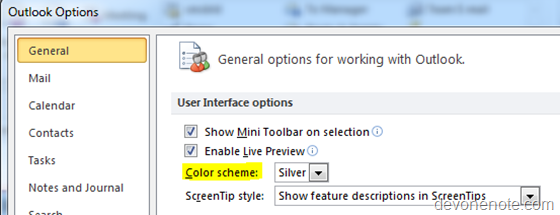
To change theme in Outlook 2010
- Open outlook, click Files, then Options
- On the General tab, select a different theme in Color scheme drop down.
-
Some shortcuts no longer work in Outlook 2010
It turns out Alter Shortcuts, e.g Alt+R (Reply), Alt+L (Reply All), and Alt+W (Forward), no longer work in Outlook 2010 BETA at all, though they worked in Outlook 2007 and previous Office 2010 CTP version.
Actually, these shortcuts are not lost, they just change Alt to Ctrl for some reason. Users have to use Ctrl+R to Reply instead of Alt+R, use Ctrl+Shift+R to Reply All Instead of Alt+L, use Ctrl+F to Forward Instead of Alt+W.
Hopefully MS won’t change these again in RTM builds.
Updates
22th April – Microsoft brings them back in final Office 2010 RTM build 14.0.4763.1000, the shortcuts for reply and forward are same as Office 2007
Reply: Alt+R or Ctrl+Shift+R
Reply All: Alt+L
Forward: Alt+W
-
OneNote: Unread Highlighting cannot be cleared
I recently upgraded to Office 2010 BETA and I notice an annoy bug in OneNote 2010.
There is a feature in OneNote 2010 which will highlight unread content after notes are synced between two PCs. However, it can’t detect whether those content is read or not so the green highlighting will stay there forever.
The workaround is right-clicking on the notebook and choosing to Mark as Read. By doing this you tell OneNote I read it and please remove the green highlighting. This also makes unread bolding go away.
Update:
29th April – This is gone in final Office 2010 RTM build 14.0.4763.1000
-
Uncompress MSI File
Sometimes I need to unzip MSI file to view its content without actual installing it. I used to use a 3rd party tool named 7zip to extract MSI. Today I discover there is much easier way to do this with windows build in tool msiexec.exe
The use msiexec to uncompress MSI file, you need to open a command line and run type following:
msiexec /a <YourPackageFullPath> TARGETDIR=<ExtractedMSIFullPath>
Replace <YourPackageFullPath> with full path of MSI file, <ExtractedMSIFullPath> with the target folder you want MSI files to be extracted to.
For example, to extract c:setup.msi, run following command:
msiexec /a c:setup.msi TARGETDIR=c:ExtractedMSI
The uncompressed setup.msi and all files along with fold structures will be extracted into c:ExtractedMSI
Note: For Vista/Win7 with UAC turn on, the above command needs to be run from elevated command prompt.
-
Batch Script Tips
Getting the current working directory
cd /d %~dp0
Comment: %0 is the name of the batch file. ~dp gives you the drive and path.