Month: April 2010

  • How to Install Hyper-V

    What is Hyper-V

    Hyper-V is Microsoft’s supported form of machine virtualization.  It allows you to run any number of guest machines on your host machine.  Each guest thinks it’s running on its own hardware, and is unaware that it’s just a simulation.

    Hyper-V also provides an easy way to snapshot and rollback virtual machine to an old saved stage.

    Hyper Installation Prerequisites

    • Operation System – Hyper-V is only available in 64 bit versions of Windows Server 2008 and Windows Server 2008 R2
    • Hardware – Processors should include a virtualization option. For example, Intel Virtualization Technology (Intel VT) or AMD Virtualization (AMD-V).

    If you are not sure if your computer processor supports hardware virtualization, you can checkout Microsoft’s Hardware-Assisted Virtualization Detection Tool. The tool also checks if virtualization is enabled on the processor.
    (more…)

  • CopySourceAsHtml for Visual Studio 2010

    CopySourceAsHtml is an add-in for Microsoft Visual Studio 2008 that allows you be able to quickly get your code as HTML from Visual Studio, just like being able to save it as a HTML file from the Save As dialog. It’s very helpful if you frequently post code to blog or send code in email.

    I recently switched to Visual Studio 2010 and noticed this plug in is not ready for Visual Studio 2010 yet. Here is how you can get it work for Visual Studio before CopySourceAsHtml owner releases an official update to support Visual Studio 2010.

    (more…)

  • Use coalescing operator to write more readable code

    Tired of code like this?

    public string Foo

    {

    get { return foo; }

    set

    {

    if (value == null)

    value = String.Empty;

    foo = value;

    }

    }

    public string Bar

    {

    get { return bar; }

    set

    {

    if (value == null)

    value = String.Empty;

    bar = value;

    }

    }

    Use coalescing operator to make your code a bit more readable.

    (more…)

  • Access denied when creating a folder just deleted

    I have a batch script which remove a folder and re-create it. The command that remove a folder is rd /s/q and the command create folder is mkdir. Recently I see something weird happening, everytime when the folder is deleted and re-created, there is error message Access is denied displayed. However, if I rerun the create folder command laer, it always pass successfully.

    The explanation on http://support.microsoft.com/?id=159199 seems make sense,

    This file is in a state known as pending deletion. This file has been deleted, but there are still handles open to it. NTFS will wait until all handles to this file are closed before updating the index. If an attempt is made to access the file, however, NTFS will deny the attempt. Because the file is listed in the index, but is effectively deleted, you can see the file but you cannot access it.

    The workaround here is add a 60 seconds sleep between the folder deletion and folder creation operation.

  • WordPress Keyword Description

    In most of WordPress themes, there is not meta description and meta keywords handle. This result every page of site has a empty description and keyword in page header, which is not good from search engine’s perspective.

    This can be workaround by installing plug All in One SEO. But for those who concern plugin will slow down their sites, here is a simple hack, all needs to do here is just adding a few lines in header.php.

    Firstly open header.php, find this line <meta http-equiv=”content-type” content=”text/html; charset=<?php bloginfo(‘charset’); ?>” />

    (more…)

  • Windows could not connect to the System Event Notification Service

    If you see Windows could not connect to the System Event Notification Service error on VISTA, Windows server 2008, or Windows 7, you can try follow these steps to get it resolved.

    1. Click Start, click All Programs, and then click Accessories.
    2. Right-click on the Command Prompt and then select Run as Administrator.
    3. Once the Command Prompt has opened, type following command and then press ENTER.

      netsh winsock reset

    4. Close the Command Prompt and restart the machine.
  • How to delete windows.old after upgrading to Window 10

    Windows.old is a folder that contains archive information from previous windows system when you upgrading to Windows 10.  It mainly stores programs and files that are required to run the earlier version of Windows and contains following folders.

    • Windows
    • “Documents and Settings”
    • “Program Files”

    You might end up having a Windows.old folder taking up 20+ gigs on your system drive. If you don’t need windows.old folder and want to safely delete this folder, follow the instructions below:

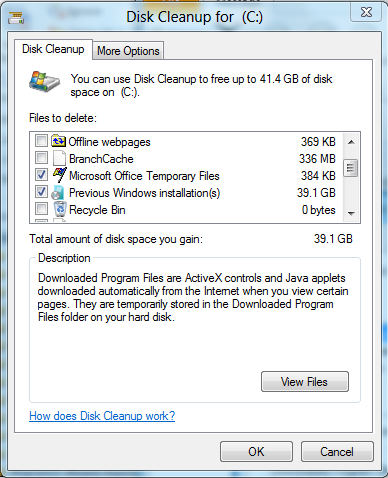
    1. Select Start, then All Programs, then Accessories, then System Tools, and then Disk Cleanup.
    2. If you are using Windows 7 or Windows 8, select Clean up system files. If you are using Windows Vista, select Files from all users on this computer.
    3. Select the Previous Windows installation(s) check box, and click OK.

    image

    IMPORTANT: Be sure to back up all important documents/files from the previous OS before following this article.

    Remove Windows.old from command line

    takeown /F c:\Windows.old\* /R /A /D Y 
    cacls c:\Windows.old\*.* /T /grant administrators:F 
    rmdir /S /Q c:\Windows.old
    

    Windows Server

    If you upgrade a server from Windows Server 2008 R2 to Windows Server 2012, you need to enable desktop experience to use this disk cleanup utility.

  • Office 2010 reaches RTM

    After Visual Studio 2010 released publicly 12th this month, Microsoft office team announces Office 2010 reaches RTM today. Office 2010 RTM is not available on TechNet yet, MSDN subscribers will have to wait till the officially Office 2010 launch at May 12.

    I am happy to see that all bugs I hit in Outlook BETA are all fixed in RTM.

    OneNote: Unread Highlighting cannot be cleared

    Some shortcuts no longer work in Outlook 2010

    Large email sizes in Outlook 2010 BETA

    Update

    22th April – Office Professional Plus 2010 is available to download for MSDN and TechNet subscribers. This is the first release of Office that contains 64 bit edition. The RTM build number is 14.0.4673.1000

    It’s recommended to install the 32 bit version Office 2010 due to compatibility issues however if you still want to try 64 bit version keep these in mind.

    (more…)

  • GhostDoc Tutorial

    Earlier I have introduced this excellent comment auto generation tool – GhostDoc. Now you can follow this instructions to get GhostDoc working in just 5 minutes.

    1. Download GhostDoc and install
    2. GhostDoc is a Visual Studio plugin, so after Visual Studio is launched, you’d need to assign a hotkey for automatic comments generation, or just  click skip to use default hotkey Ctrl + Shift + D (more…)
  • OneNote System Tray Icon Reappears

    System tray icon reappears every time OneNote is started, how to turn it off?

    Turn off OneNote System Tray Icon

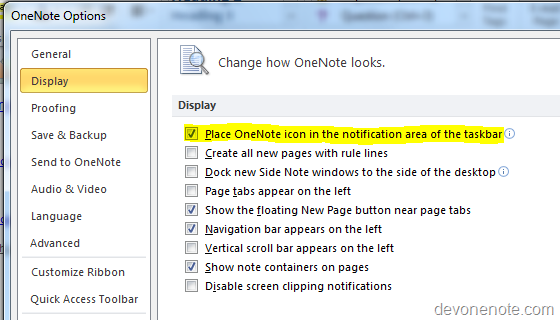
    Go to File, click options, and then click display tab, uncheck Place OneNote Icon in the Notification Area of the Taskbar.

    OneNote System Tray

    Note: Turn of OneNote icon in taskbar also turn off  OneNote Snap Tool, if you wish to use Windows key + S to bring up OneNote Snap Tool to capture screenshot, you will need to have option Place OneNote Icon in the Notification Area of the Taskbar marked.

    Update 5-22 The equivalent in OneNote 2007 is Go to Tools, and click Other and then uncheck Place OneNote Icon in the Notification Area of the Taskbar

    Turn on OneNote System Tray Icon

    Change Place OneNote Icon in the Notification Area of the Taskbar option back to marked will get OneNote System Tray Icon back.